The previous post covered how to enable Conditional Access safely — the evaluation logic, the prep work, the report-only phase, the rollback plan. This post answers the next question: which policies should you actually deploy?
The answer depends on where your tenant is. An SMB with 20 users and no Intune has different needs than a regulated finance org with 2,000 managed devices. Trying to deploy the same policy set for both is how you end up with either a false sense of security or a flood of lockout tickets.
The framework below is built on j0eyv’s ConditionalAccessBaseline — a community-maintained set of 30+ pre-configured CA policy templates with a systematic naming convention, organised by persona. I’ve mapped every policy to one of three tiers based on licence requirements, infrastructure dependencies, and user friction. Start at Level 1. Prove it works. Promote upward.
The Three Levels
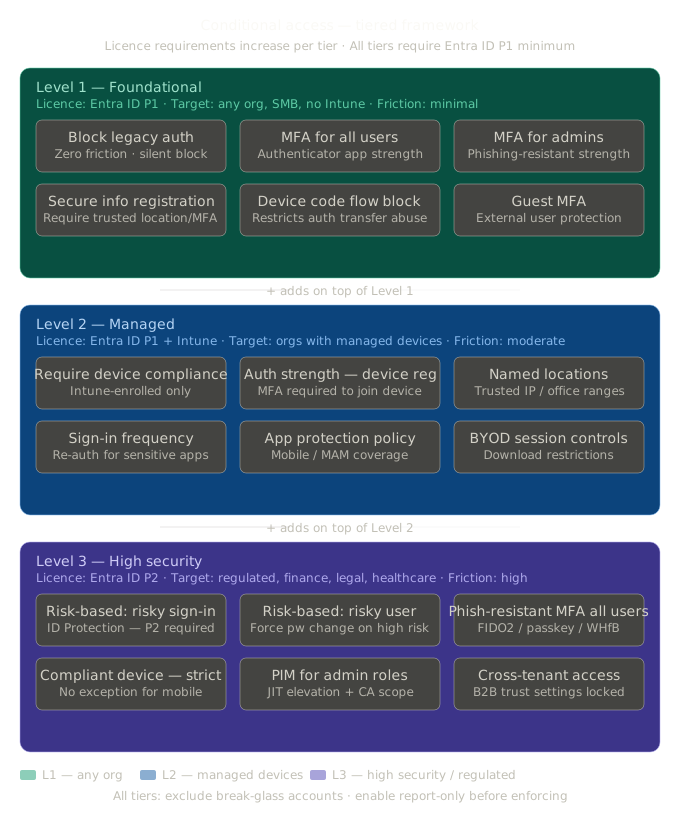
Level 1 — Foundational
Licence: Entra ID P1 (no Intune required) Target: Any organisation, SMB, BYOD-heavy, no device management Friction: Minimal
These are the policies every tenant should have, full stop. They require only Entra ID P1, don’t depend on device management, and the user impact is limited to MFA prompts (which your users should already be accustomed to if you’ve been running Security Defaults).
Nine policies cover the essentials: MFA for all user personas (global, admins, internals, service accounts, guests), legacy auth blocking, device registration protection, and authentication flow restrictions.
Level 2 — Managed
Licence: Entra ID P1 + Intune Target: Organisations with managed devices Friction: Moderate
Level 2 adds device trust, session controls, and app protection. These policies assume you have Intune deployed and compliance policies configured — if you haven’t done that yet, the Intune compliance tiered framework is the companion piece.
This tier introduces device compliance requirements, sign-in frequency controls, persistent browser restrictions, app protection policies for BYOD/mobile, geo-blocking via named locations, and continuous access evaluation (CAE). It’s a significant step up in security posture, but it requires infrastructure that Level 1 doesn’t.
Level 3 — High Security
Licence: Entra ID P2 Target: Regulated industries — finance, legal, healthcare, government Friction: High
Level 3 adds risk-based policies that require Entra ID Protection (P2). Sign-in risk and user risk detection, phishing-resistant MFA for all users (not just admins), and agent risk blocking. These are powerful controls, but they need P2 licensing and careful tuning to avoid false positives on risk detections.
The golden rule: start at Level 1 and promote upward as the tenant’s maturity increases. Never start at Level 3.
Policy Mapping by Persona
The j0eyv baseline organises policies by persona — the type of account the policy targets. This is a deliberate design choice: rather than one giant “All Users” policy that tries to do everything, you get specific policies scoped to specific account types. The naming convention makes the scope visible at a glance: CA[number] — [Persona]-[Category]-[Target]-[Platform]-[Control].
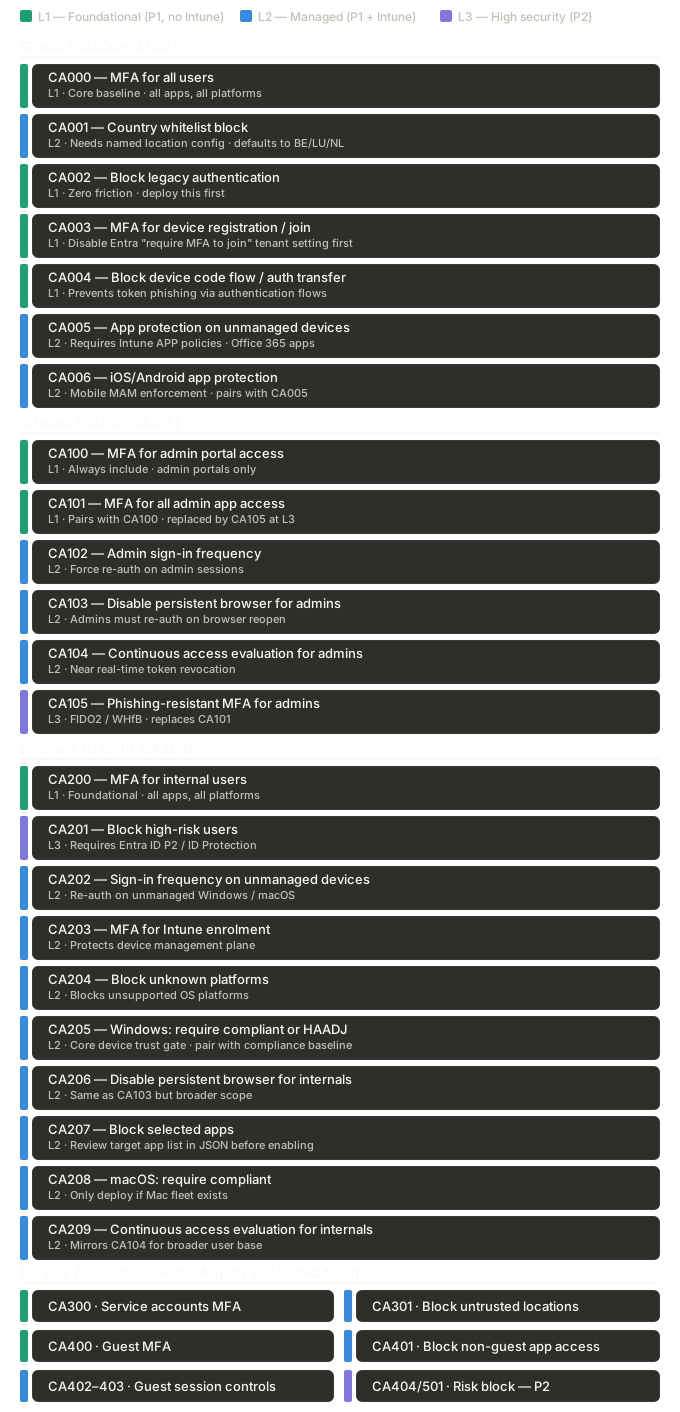
Global (CA000–CA006)
Global policies apply to all users across the tenant. These are your broadest controls.
| Policy | Tier | What it does | Watch out for |
|---|---|---|---|
| CA000 — Global MFA | L1 | MFA for all users, all apps | Core baseline. Deploy after legacy auth block. |
| CA001 — Country Whitelist | L2 | Blocks sign-ins from outside allowed countries | Update named locations first — defaults to BE/LU/NL. See the geo-blocking discussion before enabling. |
| CA002 — Block Legacy Auth | L1 | Blocks IMAP, POP3, SMTP basic auth | Zero user friction. Deploy this first — it’s the safest CA policy to enable. |
| CA003 — Device Register MFA | L1 | MFA required for device registration/join | Disable the Entra “require MFA to join” tenant setting first to avoid double-gating. |
| CA004 — Authentication Flows | L1 | Blocks device code flow and auth transfer | Prevents token phishing attacks that abuse device code flow. Low friction. |
| CA005 — Unmanaged App Protection | L2 | Requires app protection policy on unmanaged devices | Requires Intune APP policies configured first. |
| CA006 — iOS/Android App Protection | L2 | MAM enforcement for mobile devices | Pairs with CA005. Ensures managed apps on mobile. |
Admins (CA100–CA105)
Admin accounts get their own policies because they need stricter controls. A compromised admin account is a compromised tenant.
| Policy | Tier | What it does | Watch out for |
|---|---|---|---|
| CA100 — Admin Portals MFA | L1 | MFA for admin portal access | Always include — even if CA000 already requires MFA. Defence in depth. |
| CA101 — Admin Any App MFA | L1 | MFA for all admin app access | Pairs with CA100. At L3, replaced by CA105 (phishing-resistant). |
| CA102 — Sign-in Frequency | L2 | Forces re-authentication on admin sessions | Configure frequency to suit the org — 4 hours is a common starting point. |
| CA103 — Persistent Browser | L2 | Disables persistent browser sessions for admins | Admins should re-authenticate when they reopen the browser. |
| CA104 — Continuous Access Evaluation | L2 | CAE enforcement for admin sessions | Near real-time token revocation. Requires supported apps. |
| CA105 — Phishing-Resistant MFA | L3 | FIDO2/WHfB required for admin sign-in | Replaces CA101 at this tier. Requires key distribution to admins. |
Internals (CA200–CA209)
Internal users — your standard employees. The largest population, so policies here have the highest user impact.
| Policy | Tier | What it does | Watch out for |
|---|---|---|---|
| CA200 — Internal MFA | L1 | MFA for internal users, all apps | Foundational. Same as CA000 but scoped to internals for granular reporting. |
| CA201 — Block High Risk User | L3 | Blocks users flagged as high risk by ID Protection | Requires P2. Review risk detections before enabling — false positives happen. |
| CA202 — Sign-in Freq (Unmanaged) | L2 | Re-auth on unmanaged Windows/Mac | Targets devices not enrolled in Intune. Friction for BYOD users. |
| CA203 — Intune Enrolment MFA | L2 | MFA required for Intune enrolment | Ensures MFA before a device joins your management plane. |
| CA204 — Block Unknown Platforms | L2 | Blocks unsupported OS platforms | Review which platforms your org actually uses before enabling. |
| CA205 — Windows Compliant or HAADJ | L2 | Windows must be compliant or Hybrid Azure AD Joined | The device trust gate. Pair with your compliance baseline. |
| CA206 — Persistent Browser | L2 | Disables persistent browser for internal users | Same rationale as CA103 but broader scope. |
| CA207 — Selected Apps Block | L2 | Blocks access to specific applications | Review the target app list in the JSON before enabling. |
| CA208 — macOS Compliant | L2 | Requires macOS compliance | Only deploy if you have a Mac fleet. Needs macOS compliance policies. |
| CA209 — Continuous Access Evaluation | L2 | CAE for internal user sessions | Mirrors CA104 for the broader user base. |
Service Accounts (CA300–CA301)
Service accounts are the forgotten attack surface. They authenticate frequently, often with elevated permissions, and nobody monitors them.
| Policy | Tier | What it does | Watch out for |
|---|---|---|---|
| CA300 — Service Accounts MFA | L1 | MFA for service accounts | Verify service accounts can satisfy MFA. Some use client credential flows that bypass interactive MFA. |
| CA301 — Block Untrusted Locations | L2 | Blocks service account sign-ins from outside named locations | Requires named locations configured. Map your service account authentication sources first. |
Guests (CA400–CA404)
Guest users are external identities collaborating in your tenant. They need their own policies because you don’t control their home tenant’s security posture.
| Policy | Tier | What it does | Watch out for |
|---|---|---|---|
| CA400 — Guest MFA | L1 | MFA for all guest users | Essential. You cannot trust the guest’s home tenant MFA. |
| CA401 — Block Non-Guest App Access | L2 | Restricts which apps guests can access | Tightens guest scope to only the apps they need. |
| CA402 — Guest Sign-in Frequency | L2 | Re-authentication for guest sessions | Guests shouldn’t have persistent sessions into your tenant. |
| CA403 — Guest Persistent Browser | L2 | No persistent browser sessions for guests | Pairs with CA402. |
| CA404 — Guest Selected Apps Block | L3 | Blocks guest access to specific sensitive apps | Review target apps in JSON before enabling. |
Agents (CA501)
A newer persona in the baseline — covers workload identities and automated agents.
| Policy | Tier | What it does | Watch out for |
|---|---|---|---|
| CA501 — Block High Risk Agent | L3 | Blocks agents flagged as high risk by ID Protection | Requires P2. Protects against compromised service principals. |
Deployment Order
Within each level, there’s an optimal order that minimises risk and maximises early wins.
Level 1 — Deploy in this order
- CA002 — Block Legacy Auth. Zero friction, zero user impact. Deploy first, always.
- CA004 — Authentication Flows. Blocks device code flow abuse. Also zero friction for normal users.
- CA003 — Device Register MFA. Protects the registration flow. Remember to disable the Entra tenant setting first.
- CA000/CA200/CA300/CA400 — MFA policies for each persona. Deploy in report-only, validate for 7 days, then enable per the enablement framework.
- CA100/CA101 — Admin MFA. These should be in place before or alongside the broader MFA policies.
Level 2 — Prerequisites first
Before enabling any Level 2 policy:
- Intune enrolled with compliance policies deployed and validated (see Intune compliance tiered framework)
- Named locations configured if you’re using CA001 or CA301
- App protection policies configured in Intune if you’re using CA005/CA006
Then deploy in report-only, validate, enable. Same process as Level 1. One policy at a time.
Level 3 — Requires P2 and tuning
Level 3 policies depend on Entra ID Protection’s risk engine. Before enabling:
- Enable risk detections and let them run for at least 14 days to establish a baseline
- Review risk events — understand what your tenant’s normal risk profile looks like before you start blocking on it
- Deploy phishing-resistant credentials (FIDO2 keys or Windows Hello for Business) to admins before enabling CA105
What This Framework Doesn’t Cover
This is a CA policy baseline, not a complete identity security programme. You still need:
- Break-glass accounts excluded from every policy via a security group
- A rollout process — report-only first, always (covered in the enablement guide)
- Monitoring — sign-in log analysis, CA gap analyser workbook, break-glass usage alerts
- Ongoing review — quarterly policy audits, break-glass testing, scope creep checks
The j0eyv baseline gives you the policies. The enablement framework gives you the process. Together, they’re a complete system for deploying CA without the usual terror.
References
- ConditionalAccessBaseline — j0eyv’s community-maintained CA policy templates. The source for the policy set mapped in this post.
- Enabling Conditional Access Without Fear — The companion post covering CA evaluation logic, prep work, report-only validation, and the enablement process.
- A Tiered Intune Compliance Framework — The device compliance baseline that pairs with Level 2 CA policies.
- Plan a Conditional Access deployment — Microsoft’s official planning guide.
- Common CA policy templates — Microsoft’s recommended starter policies.