This guide is the process I wish I’d had the first time I enabled Conditional Access on a production tenant. It’s built from real rollouts, real lockouts, and the kind of mistakes you only make once.
The Problem — Why CA Enablement Is Scary (and Why That’s Rational)
Conditional Access is the single most powerful identity security control in Entra ID. It’s also the fastest way to lock every user out of a tenant in under thirty seconds.
The fear is rational. CA policies use double-negative logic that trips up even experienced admins. Policies evaluate in parallel with no priority ordering — there’s no “Policy 1 runs before Policy 2.” Block always wins over Grant. And the whole system is not implicit deny — if no policy matches, access is granted. That last one catches people who assume CA works like a firewall.
A significant percentage of Entra ID accounts still lack proper MFA enforcement. The gap isn’t because admins don’t know MFA matters. It’s because enabling it properly — especially via CA — feels like defusing a bomb. You know the wire you need to cut, but you’re not confident you’ve identified all the wires.
Here’s the thing: most CA failures aren’t bad security ideas. They’re rollout mistakes. Wrong scope, missing exclusions, untested edge cases. The admin who locked out 500 users didn’t write a bad policy — they wrote a reasonable policy and skipped the validation step that would have caught the one service account nobody documented.
Fix the rollout process and the security outcomes follow. This post is that process.
Understanding Grant and Block — The Logic That Trips Everyone Up
Before you write a single policy, you need to understand how CA evaluates sign-ins. This is where most lockouts originate.
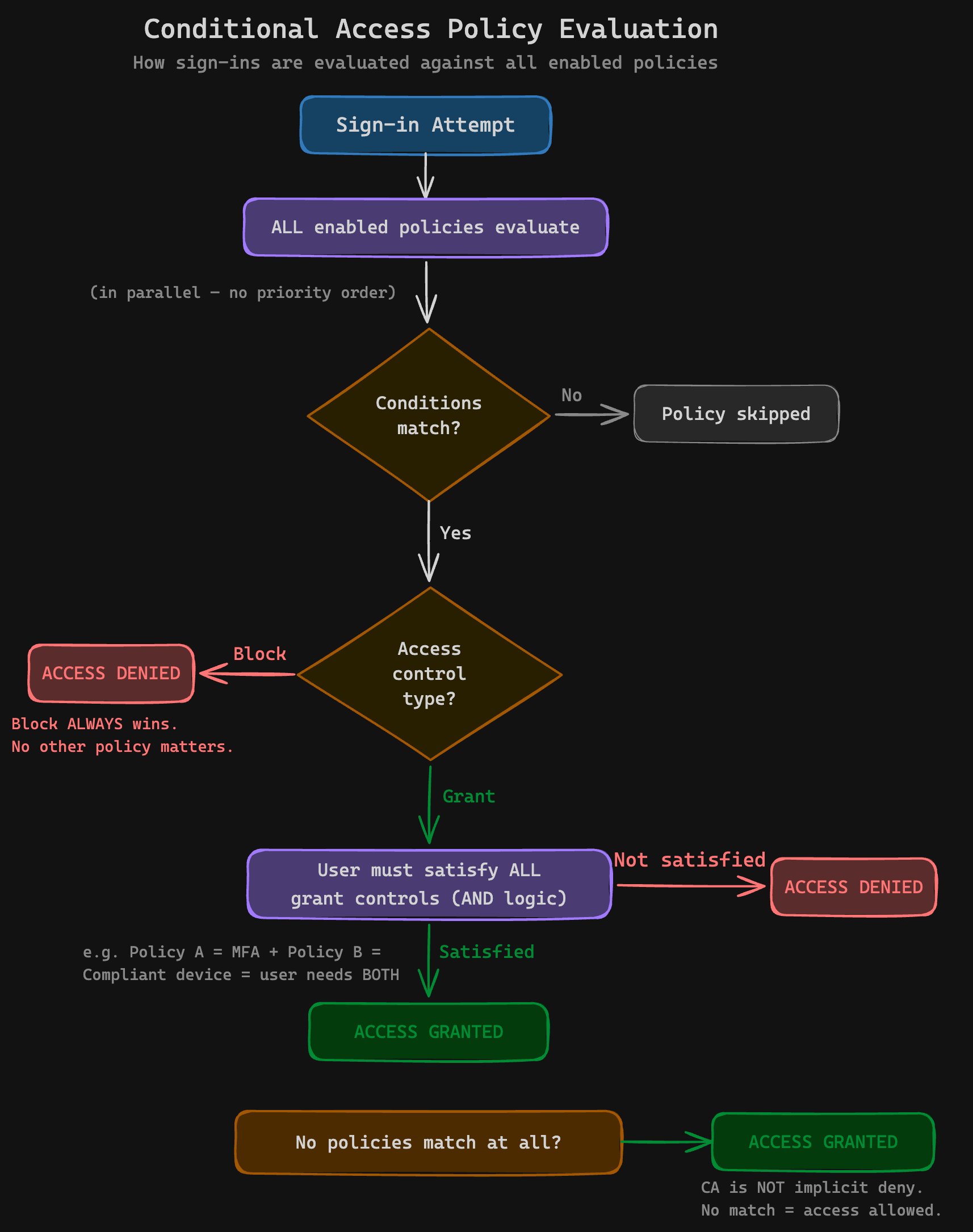
The flowchart above shows the full evaluation path. Here’s what happens on every sign-in:
- The sign-in arrives
- ALL policies evaluate in parallel — there is no priority ordering
- Does the sign-in match a policy’s conditions? If not, that policy is skipped
- If any matching policy has a Block action → access denied. Always. No MFA prompt offered.
- If matching policies have Grant actions → the user must satisfy ALL controls from ALL matching Grant policies (AND logic across policies)
- If no policies match at all → access granted. CA is not implicit deny.
What “Grant” Actually Means
Grant doesn’t mean “allow.” It means “allow if the user satisfies these conditions.” It’s a conditional gate. A Grant policy requiring MFA doesn’t whitelist anyone — it says “you may pass, but only after completing MFA.”
This matters when multiple Grant policies match. If Policy A requires MFA and Policy B requires a compliant device, the user needs both. The controls are combined with AND logic across all matching policies. This catches people who expect each policy to be evaluated independently — they’re not. Every matching Grant policy adds to the pile of requirements the user must satisfy.
Within a single policy, you can choose “Require one of the selected controls” (OR) or “Require all the selected controls” (AND). But across policies, it’s always AND. This distinction is critical and poorly documented.
What “Block” Actually Means
Block is absolute. When a Block policy matches, the sign-in is denied immediately. The user doesn’t get a chance to satisfy MFA or any other control. There is no “Block but let them try MFA first.” This is by design, but it means a miscoped Block policy is catastrophic.
The user experience on a Block is a flat “You cannot access this” error. No MFA prompt, no device enrollment option, no helpful suggestion. From the user’s perspective, the service is simply broken. From the service desk’s perspective, it’s a flood of “I can’t log in” tickets with no distinguishing information. This is why Block policies demand more careful scoping than Grant policies — the failure mode is total and silent about its cause.
The Double-Negative Pattern
Sometimes you need to allow access from a specific condition. CA doesn’t have an “Allow” action — only Grant (conditional) and Block (absolute). So you achieve “allow only from Australia” by blocking everyone except Australia.
Real-world example with a travelling user:
- CA-800 — Geo-Block: Targets All Users, blocks sign-ins from outside Australia. Excludes the
CA-Travellersgroup. - CA-902 — Traveller India: Targets the
CA-Travellersgroup, blocks sign-ins from everywhere except India (the specific country the user is travelling to).
The traveller gets access from India but nowhere else. When they return, remove them from the CA-Travellers group and CA-800 takes over again.
It works, but you’re managing access through layered exclusions on Block policies, which is inherently harder to reason about than a simple allow list. Document these relationships somewhere your team can find them. A policy naming convention helps — prefixing with CA-8xx for geo-blocks and CA-9xx for traveller overrides, for example, makes the relationship visible at a glance. If you’re looking for a solid starting point, the Conditional Access Baseline by j0eyv provides 30+ pre-configured policy templates with a systematic naming convention (CA[number]-[Persona]-[Category]-[Target]-[Platform]-[Control]) organised by persona (Global, Admins, Internals, Guests, Service Accounts). It’s a well-maintained framework you can adapt rather than building from scratch.
You’ll also want a process for the traveller flow: who approves the exception, who adds the user to the group, who removes them when they return, and what happens if everyone forgets to remove them. A calendar reminder is the minimum. A Logic App or Power Automate flow that auto-removes after a set period is better.
When You Need Grant AND Block Together
Most tenants need both types:
- Block legacy authentication (IMAP, POP3, SMTP basic auth) — these protocols can’t do MFA, so Grant+MFA is pointless
- Grant with MFA for modern authentication
- Grant with compliant device for sensitive apps (or all apps, if your Intune baseline is strong)
- Block from untrusted geographies (see the note on geo-blocking below — this is less critical if you have strong device compliance policies)
Common Mistakes
- Thinking Grant overrides Block. It doesn’t. Block always wins. If a user matches both a Grant and a Block policy, they’re blocked.
- Scoping Block to All Users without exclusions. Your break-glass accounts, service accounts, and Teams Rooms devices will all be blocked.
- Forgetting CA isn’t implicit deny. If you create an MFA policy targeting “Marketing” and someone from Finance signs in, CA does nothing. Finance isn’t denied — they’re simply not covered.
- Using Block when you should use Grant+MFA. If the goal is “users must prove identity,” use Grant with MFA. Block is for “this should never happen” scenarios.
Before You Touch a Single Policy — The Prep Work That Prevents Disasters
Understand Your Starting Point
Your tenant is currently in one of three states. Each has a different migration path.
Security Defaults enabled? When you disable Security Defaults, ALL protections drop instantly. Every user loses enforced MFA, legacy auth blocking vanishes, and admin MFA goes away. Your CA policies must be ready to replace everything before you flip that switch. There is no grace period.
Per-user MFA enabled? Per-user MFA and CA-based MFA overlap in confusing ways. Per-user MFA should be disabled before switching to CA-based MFA to avoid double-prompting and unpredictable behaviour. Disabling it doesn’t remove users’ registered authentication methods — their Authenticator app, phone numbers, and FIDO keys stay intact. But there is a gap between disabling per-user MFA and enabling the CA policy. Keep that window as short as possible.
Reference: Turn off per-user MFA
Authentication Methods migration incomplete? The legacy MFA and SSPR management blades were deprecated September 2025. If an authentication method is enabled in the legacy blade but not in the new Authentication Methods policy, users will lose access to that method after migration. Audit this before touching CA.
Reference: Manage authentication methods
Audit MFA Registration
Go to Entra → Protection → Authentication methods → User registration details. This report shows exactly which methods each user has registered.
The hidden gap in the Security Defaults transition: Security Defaults does require MFA registration — users can’t dodge it. But SD prompts for MFA on a risk-based schedule (“when necessary”), not on every sign-in. Users might only hit an MFA prompt once a week, or less. When you switch to CA with “Require MFA” on every sign-in, the frequency jumps dramatically. Users who were comfortable with occasional prompts may be caught off guard. More importantly, if tokens were never revoked when SD was first enabled on the tenant, some users may have slipped through without completing registration — check for this.
The User Registration Details report surfaces users with zero registered methods. These are the ones who’ll be locked out the moment CA enforces MFA. Send them to https://aka.ms/mfasetup before flipping any switches. Give them a deadline. Follow up on the ones who don’t.
Authentication Methods Policy
Before touching CA, make sure your Authentication Methods policy is in order. This is the central place where you control which MFA methods are available to users — Authenticator, FIDO2 keys, SMS, voice, OATH tokens, passkeys, etc.
Key things to check:
- Which methods are enabled? Security Defaults restricts users to Microsoft Authenticator (notifications or verification codes) and OATH TOTP apps. SMS and voice are not available under SD. When you switch to CA, all methods enabled in the Authentication Methods policy become available. If you haven’t explicitly configured this policy, you may accidentally broaden the MFA methods users can choose — including weaker methods like SMS. Review and tighten before the cutover.
- Is the migration from legacy blades complete? The legacy MFA and SSPR management blades were deprecated September 2025. If an authentication method is enabled in the legacy blade but not in the new Authentication Methods policy, users will lose access to that method after migration. Audit this before touching CA.
- System-preferred MFA is enabled by default as a Microsoft-managed setting. This nudges users toward the strongest method they’ve registered (e.g., Authenticator over SMS). Leave this on.
Reference: Manage authentication methods
Registration Campaign
If you need to move a large number of users to a stronger MFA method — say, from SMS to Authenticator — the Registration Campaign feature is purpose-built for this.
Registration Campaign (Entra → Protection → Authentication methods → Registration campaign) nudges users to set up Microsoft Authenticator at sign-in. When enabled, users who are still relying on weaker methods (SMS, voice) are prompted to register Authenticator during their normal sign-in flow. They can snooze the prompt a limited number of times, but eventually it becomes mandatory.
This is ideal for the SD-to-CA transition:
- Enable Registration Campaign targeting users currently on SMS/voice
- Set the snooze limit (default is 3 — users can defer 3 times before it’s enforced)
- Give it a week or two to roll through your user base
- Then proceed with CA enablement, confident that users have strong methods registered
It’s also useful ongoing — any time you want to shift users from a weaker to a stronger method without manually chasing them.
Reference: Registration campaign
Identify Non-Interactive and Service Accounts
These will break silently if caught by a broad MFA policy:
- Teams Rooms resource accounts can’t do interactive MFA. They need a dedicated CA policy scoped to a
Teams Roomsgroup with conditions like compliant device and known network location — not MFA. See Teams Rooms CA and compliance and Rooms authentication. - Service accounts and service principals using legacy protocols or client credential flows.
- Shared mailboxes that someone has been signing into directly (they shouldn’t be, but they are).
The rule: if you didn’t create the account and don’t fully understand how it authenticates, it should never be covered by a broad All Users MFA policy. Exclude first, investigate second.
To find these accounts, pull the sign-in logs for the last 30 days and filter for non-interactive sign-ins. Look for service principal sign-ins and any accounts authenticating with client credentials or legacy protocols. You’ll find things you didn’t know existed — the print server that authenticates via SMTP basic auth, the line-of-business app that uses IMAP to read a shared mailbox, the CRM integration that nobody remembers setting up. Every one of these will break silently on a broad MFA policy and loudly on a legacy auth block.
Set Up Break-Glass Accounts
Minimum two accounts. Cloud-only (no hybrid sync). Excluded from ALL CA policies via a security group — not direct exclusion. Groups are easier to audit, and you only need to check one place to confirm exclusion.
Store credentials securely. Not in a password manager that requires MFA to access — if your CA policy locks out MFA and your break-glass password is behind MFA, you’ve created a beautiful deadlock. Think sealed envelope in a physical safe, or a separate credential store with independent authentication.
Test the break-glass sign-in before you need it. Not “we set it up six months ago and it should work.” Log in with it today. Confirm it bypasses all policies. Confirm you can actually reach the credentials. If your MSP stores break-glass creds in IT Glue and IT Glue authenticates via Entra ID, ask yourself what happens when Entra ID is the thing that’s broken.
Some people will tell you break-glass accounts don’t need to be excluded from your legacy auth blocking policy. My retort: what happens when a junior engineer changes the policy flow in a big way that now affects more than just legacy auth? Always exclude break-glass from every policy. The cost is negligible. The protection is absolute.
Reference: Emergency access accounts
The Evidence-Gathering Phase — Report-Only Mode and What If
Deploy in Report-Only
Every policy starts in report-only mode. No exceptions. Minimum seven days of observation before any policy goes live.
In the sign-in logs, look for:
- reportOnlyFailure — Red flag. This user would have been blocked. Investigate every one.
- reportOnlyInterrupted — The user would have been prompted for MFA. Expected, but verify the affected users make sense.
- Which apps are affected — you’ll find apps you forgot existed.
- Which client types are triggering — legacy auth clients will surface here.
What If Tool
The What If tool lets you simulate a sign-in and see which policies would apply. Use it for specific scenarios:
- Does my break-glass account bypass all policies?
- Will the Teams Rooms account in the Melbourne boardroom be blocked?
- What happens when a user signs in from the VPN’s exit IP?
- What about the travelling sales rep in India?
What If is available in the Entra portal and via the Graph API. The Maester framework includes Test-MtConditionalAccessWhatIf for automated testing.
Reference: What If tool
Policy Impact Summary
Cross-reference policy matches with user counts. If a policy has been in report-only for seven days and shows zero impact, something is wrong with the configuration. Either the conditions are too narrow, the target group is empty, or the policy is matching a condition that never occurs.
Conversely, if a policy shows thousands of reportOnlyFailure entries, that’s your cue to investigate before enabling. Common culprits: a legacy auth block policy catching more apps than expected, a geo-block triggering on VPN exit IPs that resolve to unexpected countries, or an MFA policy hitting service accounts that authenticate frequently.
The sign-in logs are your source of truth here. Export them to a Log Analytics workspace if you’re doing this at scale — the Entra portal’s built-in log viewer tops out at 30 days and doesn’t handle complex queries well. The Conditional Access gap analyser workbook in Azure Monitor is purpose-built for this analysis.
The Enablement Framework — A Repeatable Process
Timing
Enable policies mid-morning, around 10am, during business hours. Not at 2am on a Saturday.
Why? Most users have already authenticated by 10am. Their existing tokens are valid. New sign-ins trickle in gradually. If something breaks, you see it live in the sign-in logs. Your users are awake to report issues. Your support team is staffed. You can fix it in real time instead of waking up to 200 locked-out users and a full service desk queue.
Pre-Flight Checklist
Run through this every time. No shortcuts.
- Confirm all policies are currently in report-only
- Verify break-glass accounts are excluded (via group membership, check the group)
- Confirm service accounts and Teams Rooms accounts are excluded or have dedicated policies
- Review seven days of report-only data — no unexplained reportOnlyFailure entries
- Confirm MFA registration rates are acceptable (target: 95%+ of active users)
- Run What If for break-glass, service accounts, and traveller scenarios
- Test break-glass sign-in works right now
- Notify stakeholders (IT team, service desk, client contact)
- Confirm you’re available to monitor for 1–2 hours post-enablement
- Have rollback steps documented and accessible (not in a SharePoint site protected by the CA policy you’re about to enable)
Enablement Steps
- Open sign-in logs in a separate tab
- Confirm break-glass credentials are accessible right now
- Flip the first policy from report-only to on
- Note the exact time
- Monitor sign-in logs for 30 minutes — watch for failures
- Check the service desk for new tickets
- Verify core services: Teams, Outlook, SharePoint, any LOB apps
- Repeat for remaining policies (one at a time, with monitoring between each)
- Passive monitoring for 24–48 hours
Rollback Options
In order of preference:
- Revert to report-only — Instant, no user impact, preserves the policy for investigation
- Exclude affected users/groups — Targeted fix if only a subset is impacted
- Disable the policy entirely — Nuclear option, but sometimes necessary
Do not re-enable until you understand the root cause. “It seems fine now” is not a root cause.
Tip: Practice the rollback before you need it. During your report-only phase, flip one policy to “on” in a test tenant (or during a maintenance window with one test user), confirm it works, then flip it back to report-only. The muscle memory of knowing exactly which dropdown to click and which button to hit matters when you’re under pressure with the service desk queue growing.
The Security Defaults Cutover — Special Considerations
Security Defaults and Conditional Access cannot coexist. You must disable one to enable the other.
When you disable Security Defaults, these protections vanish immediately:
- MFA for all users
- MFA for admin roles
- Legacy authentication blocking
- MFA for Azure management portal access
Your CA policies must cover all four before you disable Security Defaults. If you enable CA with only an MFA policy and forget legacy auth blocking, you’ve just opened a hole that Security Defaults was plugging.
Authentication Strength matters here. Security Defaults restricts MFA to the Microsoft Authenticator app and OATH TOTP apps — no SMS, no voice calls. When you switch to CA, all methods enabled in the Authentication Methods policy become available by default unless you restrict them via Authentication Strength grant controls. If your security posture requires phishing-resistant MFA or excludes weaker methods like SMS, configure Authentication Strength before the cutover — otherwise you’re accidentally weakening your MFA posture by switching.
Recommended Cutover Order
- Complete the Authentication Methods migration (days before the cutover, not the same day)
- Configure Authentication Strength policies if needed
- Build all CA policies in report-only
- Validate for 7+ days
- Disable Security Defaults and enable CA policies simultaneously
That last step needs to be fast. Disable Security Defaults, immediately switch all CA policies from report-only to on. The gap should be seconds, not minutes.
Have a second admin ready. One disables Security Defaults, the other immediately starts enabling CA policies. Pre-open every policy in separate browser tabs so you’re just clicking “On” and “Save” — not navigating menus. The window of zero protection should be measured in seconds.
Warning: If you disable Security Defaults and then discover a CA policy has a configuration error that prevents it from being enabled, you’re now running with zero identity protection while you troubleshoot. This is why the report-only validation phase is non-negotiable. Every policy must be confirmed working in report-only before you schedule the cutover.
Communicating the Change
Users Already Doing MFA (Security Defaults)
If users are already completing MFA prompts via Security Defaults, the switch to CA is largely invisible to them. Don’t over-explain. A brief note — “We’re upgrading our security configuration. You may see a one-time MFA prompt. No action needed.” — is sufficient.
Geo-Blocking (If You’re Using It)
A word on whether you even need geo-block policies: if you’re running compliance-based Conditional Access with a strong baseline — device trust via Intune compliance, MFA on every sign-in — geo-blocking is largely redundant. You’re already relying on device attestation and identity verification as your trust signals, not the geographic origin of the request. An attacker in Russia can’t satisfy “compliant device + MFA” any more than they can satisfy “must be in Australia.”
This only holds if you’ve closed the registration loophole. Device enrollment and security info registration (adding MFA methods) must also require MFA via Conditional Access. If they don’t, an attacker with stolen credentials can register their own device as “compliant” and enrol their own MFA methods — at which point your compliance-based trust model is protecting an attacker’s device. The specific user actions to protect:
- Register security information — CA can require MFA before a user registers new authentication methods. Without this, an attacker who compromises a password can add their own Authenticator app.
- Register or join devices — CA can require MFA (or a compliant device) before enrolling a new device into Intune/Entra. Without this, the attacker enrols a device they control, it becomes “compliant,” and your device trust policy now trusts them.
These two policies close the gap that makes compliance-based CA robust enough to replace geo-blocking. Without them, your trust model has a bootstrapping problem.
Geo-blocking adds value in tenants that don’t have strong compliance policies — where access is granted based on MFA alone and there’s no device trust requirement. In that scenario, blocking untrusted countries reduces the attack surface. But if you’ve built the trust model around the device and the identity and protected the registration flows, geo-blocks mostly create operational friction (travelling staff, VPN exit IPs in unexpected countries) without meaningfully improving security.
If you do use geo-blocking, call it out explicitly in your communications: “Sign-ins from outside Australia will be blocked. If you’re travelling, notify IT at least 48 hours before departure so we can add a temporary exception.” This is the policy most likely to surprise users — a flat block with no MFA prompt and no helpful error message.
Users Without MFA Registration
These users need a specific action item: go to https://aka.ms/mfasetup, register at least two methods, do it by [date]. Follow up individually. The ones who ignore it are the ones who’ll call the service desk on enforcement day.
Why two methods? Because the user who registered only their mobile number and then lost their phone is now locked out with no recovery path that doesn’t involve a service desk call. Authenticator app plus phone number is a sensible minimum. FIDO2 key as a backup is ideal for privileged users.
Beyond Day One — Living with Conditional Access
CA isn’t a set-and-forget control. It needs ongoing care:
- Review policies quarterly. Business changes — new offices, new apps, new user populations — all affect CA policy scope.
- Audit break-glass accounts monthly. Confirm they still exist, credentials still work, they’re still excluded from all policies. Log this audit.
- Monitor the CA gap analyser workbook. It surfaces users and apps not covered by any policy.
- Always start new policies in report-only. Even if you’re “just adding a small tweak.” Especially if you’re just adding a small tweak.
- Run the pre-flight checklist every time. It takes ten minutes. Skipping it to save ten minutes is how you spend four hours in an incident bridge.
- Document your policy set. Maintain a spreadsheet or wiki page that maps each policy to its purpose, target group, and exclusions. CA policies are self-documenting in the portal, but only if you’re looking at them one at a time. A summary view that shows all policies and their relationships catches conflicts that the portal won’t surface.
- Set up alerts for break-glass usage. If a break-glass account signs in, you want to know immediately — either you’re in an emergency and it’s expected, or someone has compromised the credentials. Configure a Log Analytics alert or use Microsoft Sentinel to detect break-glass sign-ins.
References
- Plan a Conditional Access deployment — Microsoft’s official planning guide. Start here for the full decision matrix.
- Emergency access accounts — How to set up, secure, and monitor break-glass accounts.
- Teams Rooms CA and compliance — Supported CA policies for Teams Rooms devices.
- Teams Rooms supported CA and compliance policies — Detailed matrix of which CA controls work with Rooms.
- What If tool — Simulate sign-ins against your CA policies before enabling them.
- Turn off per-user MFA — Migration path from per-user MFA to CA-based MFA.
- Manage authentication methods — Authentication Methods migration from legacy blades.
- Common CA policy templates — Microsoft’s recommended starter policies.
- Registration campaign — Nudge users to register Authenticator at sign-in, with configurable snooze limits.
- Conditional Access Baseline — Community-maintained set of 30+ baseline CA policy templates with a structured naming convention, organised by persona.